Mato Recordings turns a keynote, webinar, panel or talk you already recorded into a kit of things to make. Upload the file once. Mato transcribes it, then suggests episodes, short clips, articles, a newsletter and social posts. Each suggestion shows what it costs, the recommended episode says why it fits, and nothing uses a speaker's voice until you approve it.
An original editorial image made for this launch. Product screenshots in this post are real Mato UI.
A good talk usually ends up as one video file. It goes in a follow-up email, maybe on a YouTube channel, and then it sits there. Everyone agrees there were three or four great moments in it. Cutting them out is a job nobody owns.
We built Recordings for that file. You bring the talk. Mato reads it, tells you what it could become, and makes the pieces you pick.
What is Mato Recordings?
Recordings is a new section in Mato for long recordings you already have. You upload audio or video up to 1 GB as MP3, M4A, AAC, WAV, OGG, WEBM, MP4 or MOV.
Mato then does three things:
- It transcribes the recording with speakers labeled. You can rename speakers and play the recording from any line.
- It plans a kit: the episodes, clips, articles, newsletter and posts this recording could become.
- It makes what you choose, one item at a time or everything that is ready at once.
When we tested it with a 45-minute keynote (a 498 MB file), the upload took about two and a half minutes, the transcript about one minute, and the kit was planned about 90 seconds after that. Your timing will depend on the file and your connection.
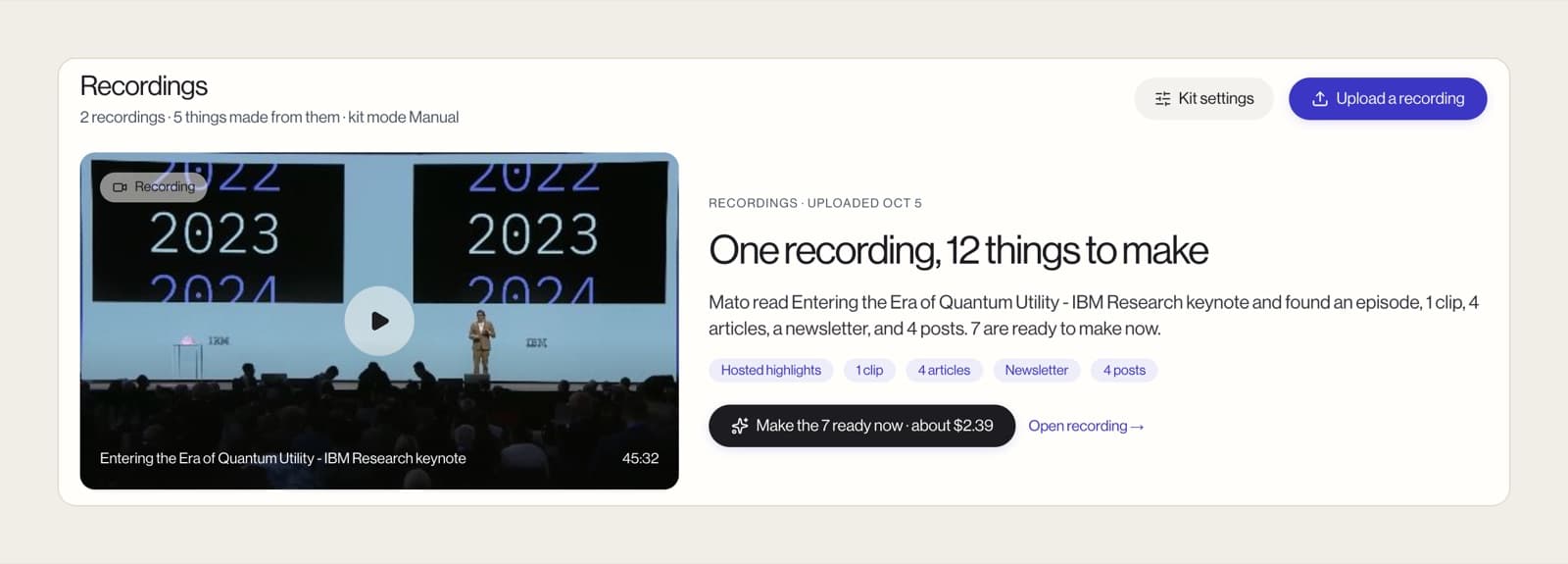
Mato UI: the Recordings hub after Mato read a 45-minute keynote and planned 12 things to make from it. The recording is a public IBM Research keynote from Wikimedia Commons, used here as sample material.
What goes in the kit
The kit is a list of things to make from this specific recording. Claude Opus 5.5 plans it from the transcript and picks the clip moments from the word-level transcript.
| What you can make | What you get |
|---|---|
| Episodes | Three formats for your show, described below |
| Short clips | Directed vertical clips, each with a real frame preview. Publish them to social through Upload-Post, or download them |
| Articles | Written pieces you can publish to WordPress |
| Newsletters | An issue you can send through Klaviyo |
| Social posts | Post text and an image. Copy the text and download the image to post it yourself |
Every item in the kit shows what it costs before you make it, and the recommended episode says why it fits the recording. You can make one thing to see how it turns out, or press Make the N ready now to make everything that is ready.
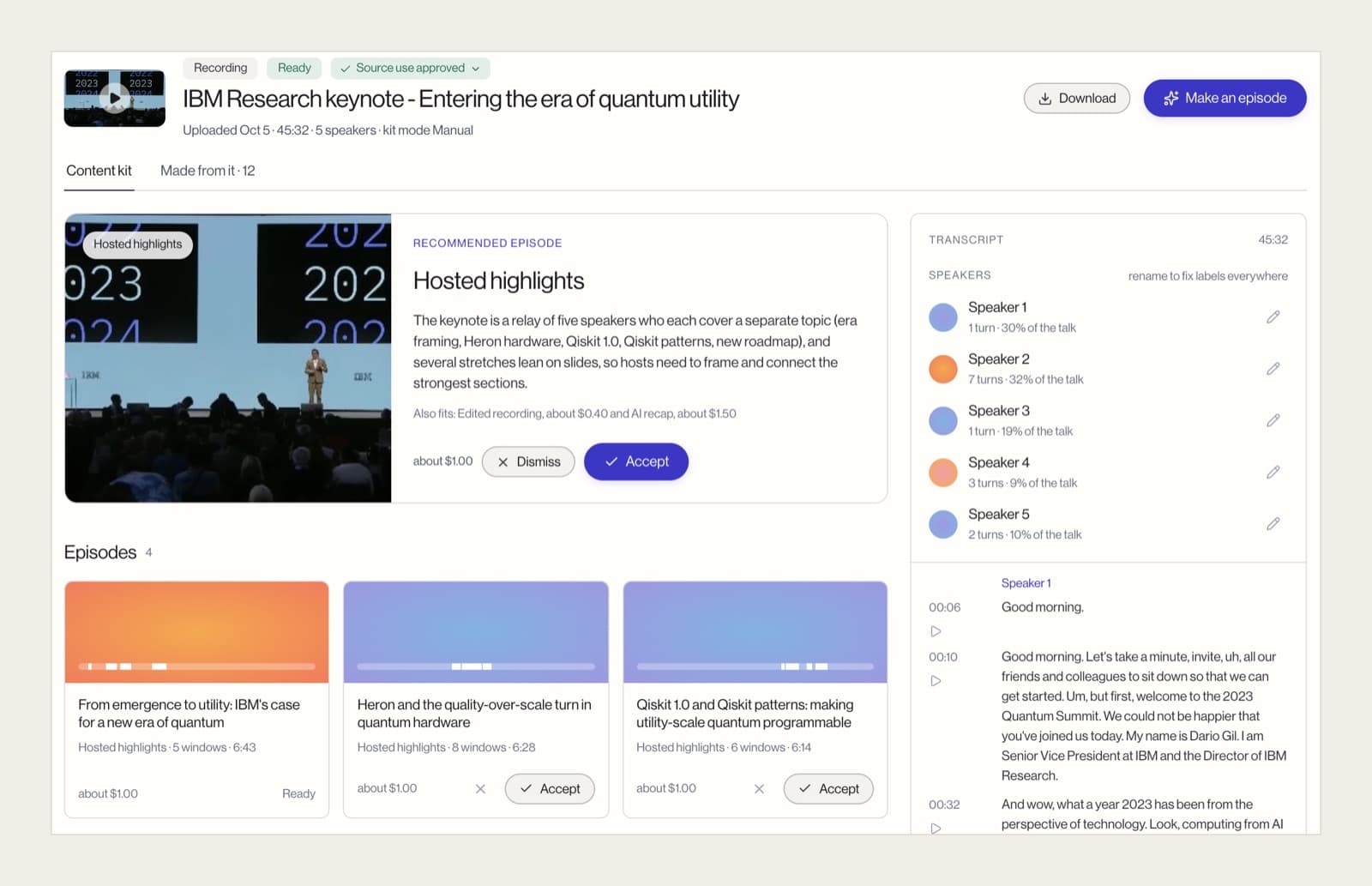
Mato UI: the keynote's content kit. The recommended episode says why it fits, and every item shows its cost before anything is made.
Three ways to turn a talk into an episode
A keynote is not a podcast episode yet. So Recordings offers three episode formats, and they suit different talks.
- AI recap. Your show's hosts retell the talk in their own words. It works from the transcript, so it suits a talk whose ideas matter more than its delivery.
- Hosted highlights. Your hosts introduce the best recorded moments, and listeners hear the speaker in between.
- Edited recording. The recording itself, cut down to its best parts, with no synthetic voices at all.
Episodes and clips need a show to live in. Articles and newsletters work without one, so you can use Recordings before you have a podcast.
Nothing uses a speaker's voice until you say so
A talk belongs to the people who gave it. So every recording starts as Transcript only. In that mode, Mato works from the words: articles, newsletters and the AI recap. It does not use the speakers' own audio or video.
Clips, Hosted highlights and Edited recording all use the speakers' own audio or video. Those stay locked until you mark the recording Source use approved. Mato asks when it gets to that point, and the prompt is plain about the condition: only approve if every speaker agreed.
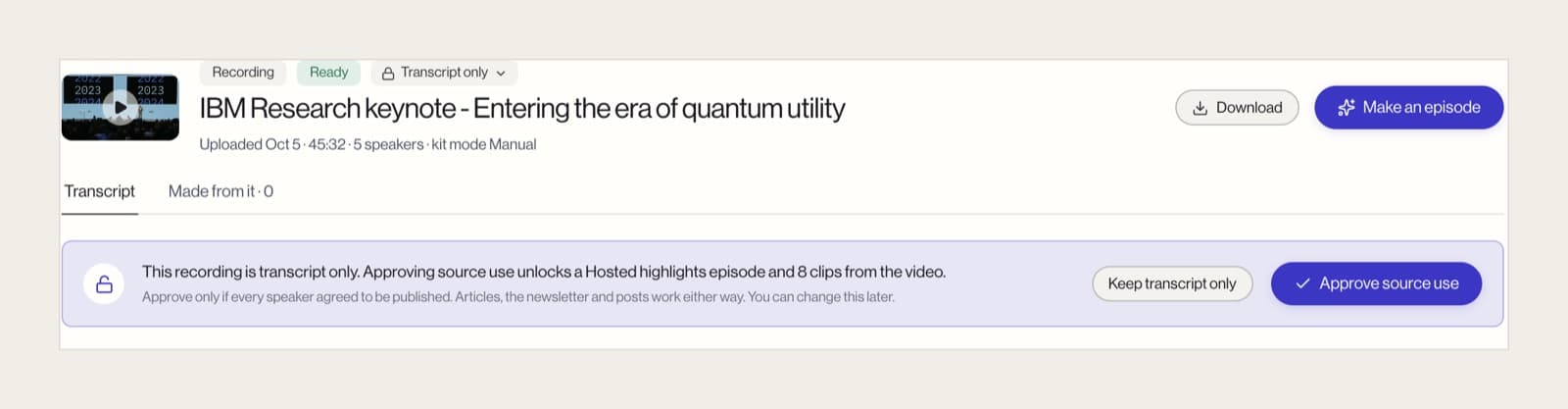
Mato UI: the source-use prompt. Clips and recorded-voice episodes stay locked until you approve it.
We made this a separate click on purpose. It is easy to cut a clip from a panel without asking the panel. We would rather you ask.
What you get back
Clips, episodes, articles and images can all be downloaded, one by one or as a single zip.
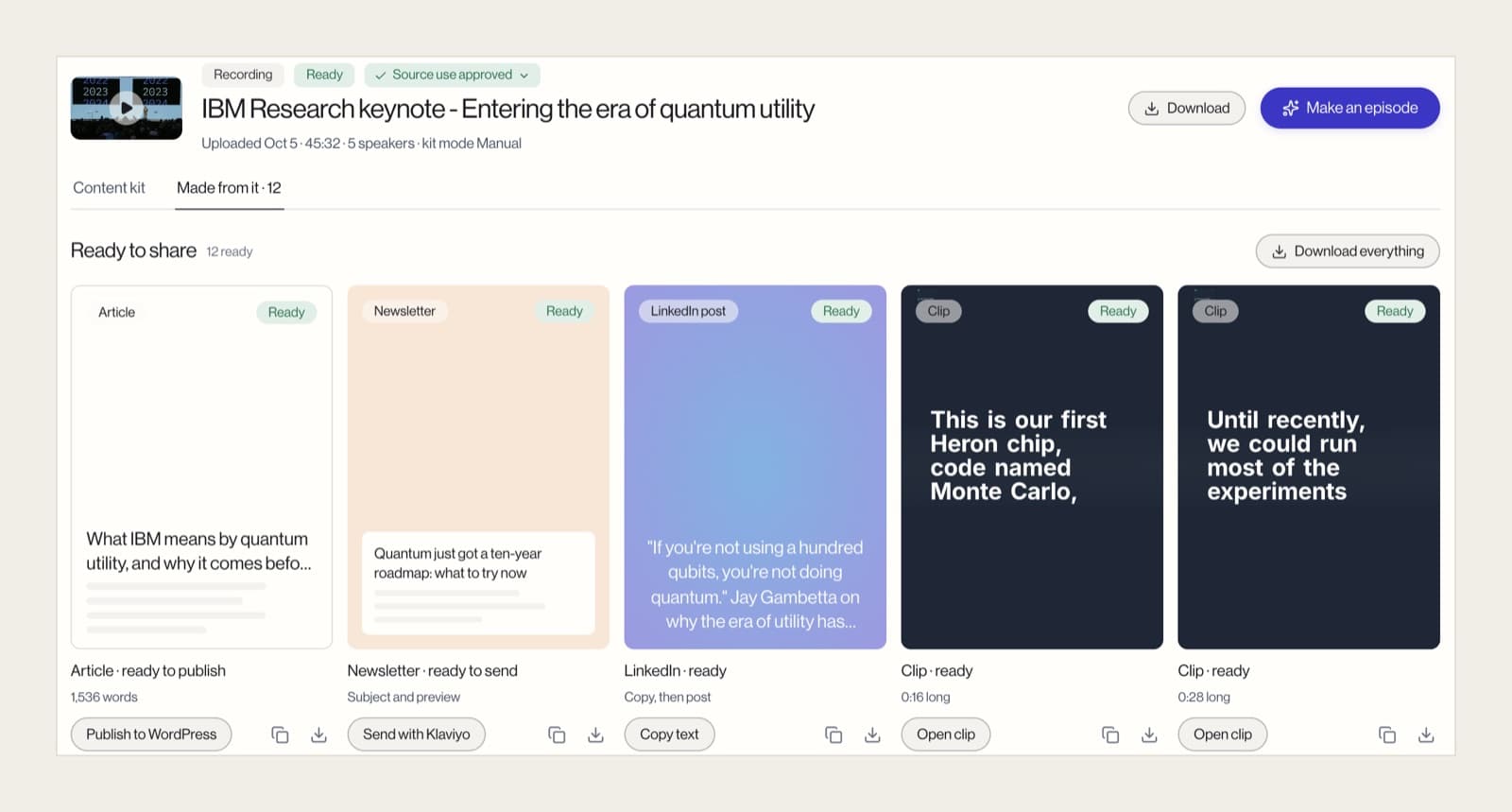
Mato UI: what was made from the keynote, each with its next step: publish, send, copy or open.
While things run, the activity center shows each step: the upload, the transcript, the kit planning and every output. If something fails, it shows a Try again button.
Ask Mato to do it for you
Ask Mato, the assistant inside the app, knows about your recordings too. You can ask it to list them, explain what is in a kit, or make something from one.
Make an AI recap episode from yesterday's keynote for our show.
That is the whole request. Mato finds the recording and starts the episode. If the format needs source use approved first, it says so.
Who it is for, and what it does not do yet
Recordings fits teams that already record talks: event and conference teams, marketing teams that run webinars, and companies whose leaders speak on panels. If the recordings exist and nobody has time to cut them up, this is for you.
What it does not do yet:
- Slides. Mato reads the audio and video. It does not read your slide deck. Slides support is planned.
- Live capture. Recordings works on a finished file. It does not record an event while it happens.
- Posting social posts for you. Clips can go out through Upload-Post. Social posts are copy-and-download for now; posting and scheduling them from Mato is not built yet.
If you want a live interview with a guest instead, that is what Mato's AI hosts do. Recordings is for the talk that already happened.
Start with a talk you already have
Pick a recording you were proud of and never got around to using. Upload it, read what Mato suggests and make one thing. You will know from that first item whether the kit is worth making in full.
There is more on the Recordings page. If you are planning a webinar program, the guide on turning a webinar into a podcast covers the format side, and Mato clips explains how directed clips are made.
Mato Recordings
Your last keynote has more in it.
Upload one recording and see the kit Mato plans from it, with a cost on every item.
Frequently asked questions
What files can I upload to Mato Recordings?
Audio or video up to 1 GB, as MP3, M4A, AAC, WAV, OGG, WEBM, MP4 or MOV. Keynotes, webinars, panels and talks all work.
Does Mato use the speakers' voices?
Only after you approve it. Every recording starts as Transcript only, which covers articles, newsletters and AI recap episodes. Clips, Hosted highlights and Edited recording use the real audio or video, so they need you to mark the recording Source use approved. Only do that if every speaker agreed.
Do I need a podcast to use Recordings?
No. Articles and newsletters work without a show. Episodes and clips need a show in Mato to belong to.
How much does it cost?
Each item in the kit shows its cost before you make it, so you decide item by item. See pricing for plans.
Can I download what Mato makes?
Yes. Clips, episodes, articles and images can be downloaded individually or together as one zip.
Can Mato post to social media for me?
Clips can publish to social through Upload-Post, or you can download them. Social posts come as text and an image that you copy and download. Posting and scheduling social posts from Mato is not built yet.
Does Recordings work with slides?
Not yet. Mato works from the audio and video today. Slides support is planned.